Setting Access Permissions for Shared Folders
This guide explains how the owner of a shared folder registers access permissions (roles) to determine who can perform what actions. Access permissions are set at the top-level shared folder unit in the shared list, and the same permissions apply to subfolders.
1. Open Access Control Management Window
- Open the [Shared Box] in the left menu.
- Right-click on the shared folder and select [Settings]. You can also select the shared folder and click the settings icon in the top menu bar.
- The access control management window will open on the right.
When you create a new shared folder, this window opens automatically. The [Settings] menu is only displayed to the owner.
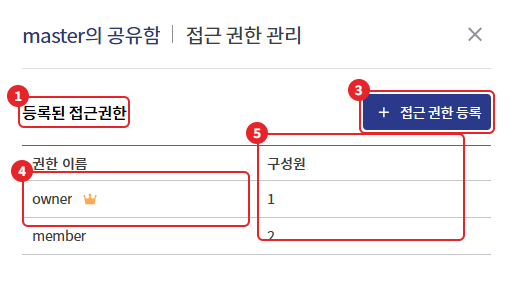
| number | item | Explanation |
|---|---|---|
| 1 | Registered Access Rights | List of roles registered in the shared folder |
| 2 | [Synchronization] | Display only when the role permissions do not match the higher permissions (refer to 5-1. The above screen is in a non-displayed state) |
| 3 | [Access Permission Registration] | Register New Role |
| 4 | Permission Name | Role name. The owner role displays the owner icon. |
| 5 | Members | Number of Members and Profiles. Click the row to open details |
2. Access Permission Registration
- In the access permission management window, click [Register Access Permission].
- Enter the permission name.
- Add members. (Refer to 2-1)
- Set permissions. (Refer to Chapter 3)
- Specify the usage period if necessary. (See Chapter 4)
- Click [Register]. A notification will appear saying "New access rights have been registered."
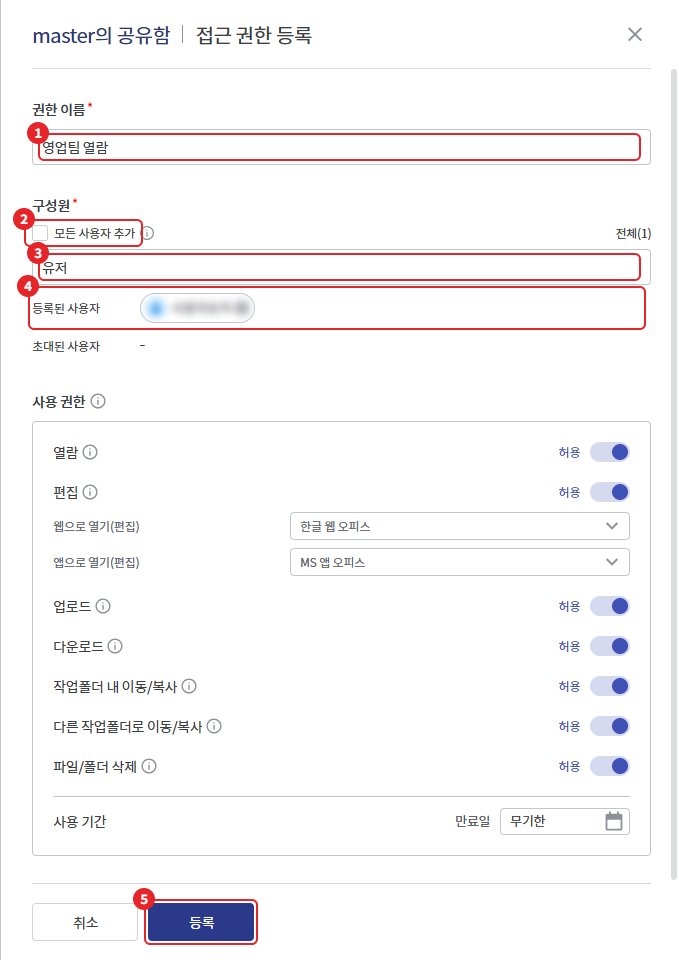
| item | Essential | Explanation |
|---|---|---|
| Permission Name | Essential | Up to 50 characters. No duplicates allowed in the same shared folder. |
| Members | Essential | One or more users (or groups). If empty, display "Please add a user." |
| Permission | - | Initially filled with values like the owner role |
| Usage Period | - | Default value indefinite |
2-1. Add Member
| Method | Action |
|---|---|
| Search and add | Enter the username or email in the search box and select from the results. Users, groups, and policy groups can be searched. |
| Add All Users | Checking [Add All Users] will make all users in the company members. "All users in the registered organization have been added." |
| Inviting External Users | Enter an email not in the organization to invite (only if allowed by the administrator. Refer to external user invitation) |
- The added members are displayed in the [Registered Users] area and can be removed using the delete icon of the item.
- The total number of members is displayed in the upper right corner of the member area.
- If the mail server is configured in the admin console, a notification email containing the shared folder link will be sent to newly added users within the organization. It will not be resent to users who are already members of this shared folder.
3. Permissions
Each item allows you to set enable/disable with a switch. Hovering over the information icon next to the item name will display a description.
| Permission | Action when allowed | condition |
|---|---|---|
| viewing | Check file contents, view folder items | - |
| Edit | Edit file contents, change name | Settings available when access is allowed |
| Upload | Add File, Overwrite Existing File | - |
| Download | Save the file to the PC | - |
| Move/Copy within the working folder | Moving and copying within the same shared folder | Editable settings available when allowed |
| Move/Copy to another work folder | Move·Copy to another folder·storage. May be restricted according to security policies. | Settings available when editing is allowed |
| File/Folder Deletion | Delete files and folders. Deleted items are stored in the recycle bin for 30 days. | - |
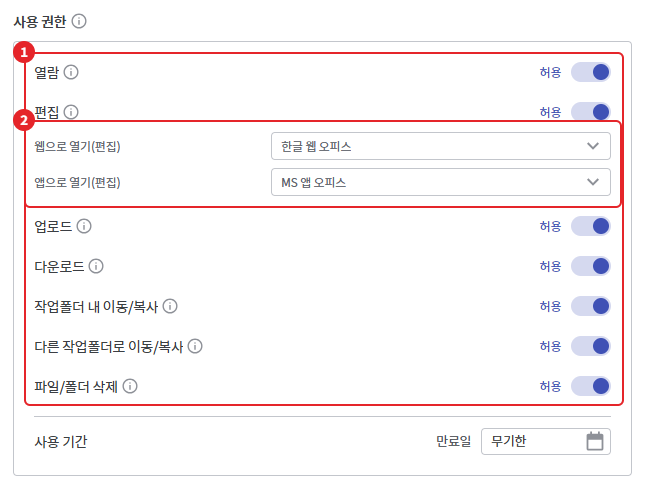
3-1. Select Editing Method
If editing is allowed, the options for choosing the editing method will appear below. The displayed options vary depending on the shared storage type and administrator settings.
| item | Options |
|---|---|
| Open in Web (Edit) | MS Web Office (SharePoint Storage), Google Docs (Google Drive Storage), MS Office Online Server · Hangul Web Office (NAS · Secure NAS · Amazon S3, if enabled by the administrator), Not Used |
| Open with App (Edit) | MS app Office, not used (Google Drive storage has no items) |
- If the web editing option is "None," the open (edit) item for the web will not be displayed.
- If both items are set to "Disabled," editing will be blocked.
3-2. Items that cannot be configured
If the switch is grayed out, it is an item blocked by higher permissions.
| Target Role | Upper authority that serves as the standard |
|---|---|
| Member Roles · Additional Roles | Only items permitted in the owner role are allowed. |
| Owner Role | Only items permitted in the shared storage role by the administrator are allowed. |
3-3. Owner Role Permission Modification
Whether the owner can directly change the permissions of the owner role depends on the admin setting "Shared Box Owner Policy Individual Settings."
| Administrator Settings | Owner Role Permissions |
|---|---|
| use | Owner can edit directly. However, only within the items allowed in the shared storage role. |
| Not in use | Cannot be modified. Always maintain the same as the shared storage role permissions. |
If the permissions cannot be modified, an information icon will be displayed next to the permission title. Clicking the icon will show the message "Permissions modification for the owner role can be modified on the admin site," and if permission changes are needed, please request them from the administrator.
If you reduce the permissions of the owner role, items that exceed the owner scope in the member role and additional roles will be automatically blocked.
4. Usage Period
Member roles and additional roles can have a usage period specified. The owner role does not have a usage period item.
- Click on the expiration date input field for the usage period.
- Select the expiration date on the calendar. To remove the time limit, click [Indefinite].
- Click [Register] or [Save].
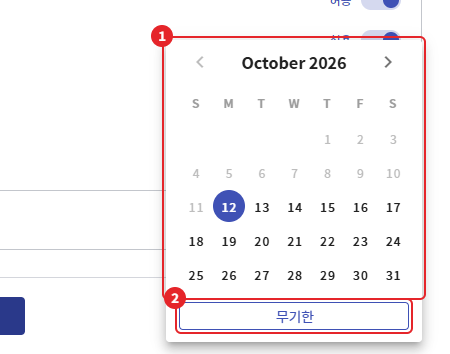
Once the expiration date has passed, the corresponding role will no longer apply, and members registered solely under that role will not be able to access the shared folder. To use it again, a new expiration date must be specified.
5. Modify/Delete Access Permissions
- Click on the role row to edit in the access control management window.
- Modify the permission name, members, permissions, and duration in the access rights details window.
- Click [Save]. A notification saying "Access permissions have been modified." will be displayed.
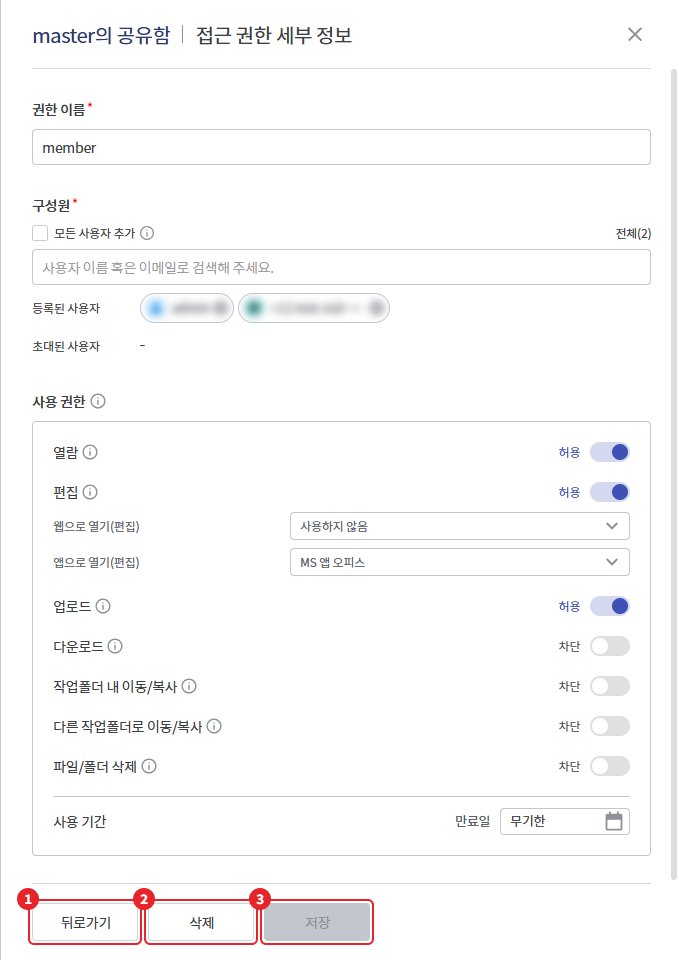
| button | Action |
|---|---|
| [Go Back] | Returning to the list without saving |
| [Delete] | Delete role. "Do you want to delete the access permission?" Confirm and delete. Not displayed in owner role. |
| [Save] | Save changes. Disable if there are no changes. |
If the role is deleted, a notification saying "Access rights have been deleted." will be displayed, and members registered only with that role will no longer be able to access the shared folder.
5-1. Permission Synchronization
If the higher permissions change, such as reducing the permissions of the shared storage role by the administrator, the [Sync] button will be displayed at the top of the access permission management window.
- Click on [Sync].
- The button display changes to "Synchronizing," and items exceeding the upper range are adjusted to block.
- When "Complete" is displayed, it ends. If "Failed" is displayed, click again after a moment.
(Image to be attached later)